

Overview
In this article you will learn how to easily create a Divi child theme and why it is important to have one.
Why is it important to have a child theme?
Have you ever done some edits to your Divi theme's files and then lost them after an update? Well, most people have. Because when you update your theme, all old files are deleted and replaced by new default ones. So all your edits will be lost.
Luckily we can create a child theme, which will be the same as the original but will not be affected by an update.
So let's create one!
Create a Divi child theme
-
- Open your website's FTP or File Manager app.
- Go to your WordPress directory (it is usually inside public_html directory).
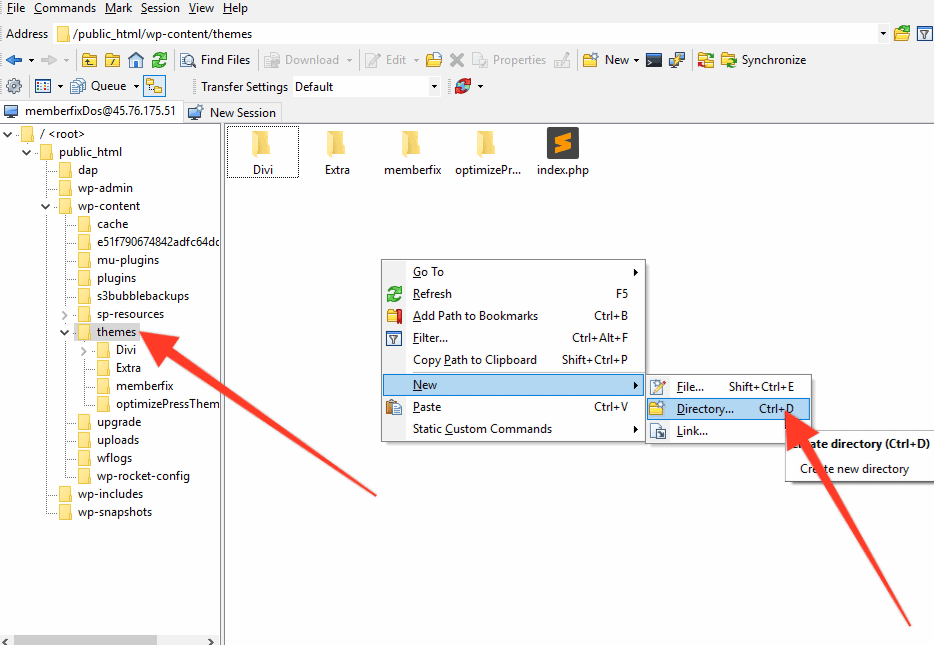
- Navigate to wp-content => themes.
- Create new directory inside themes directory and name it Divi Child Theme.
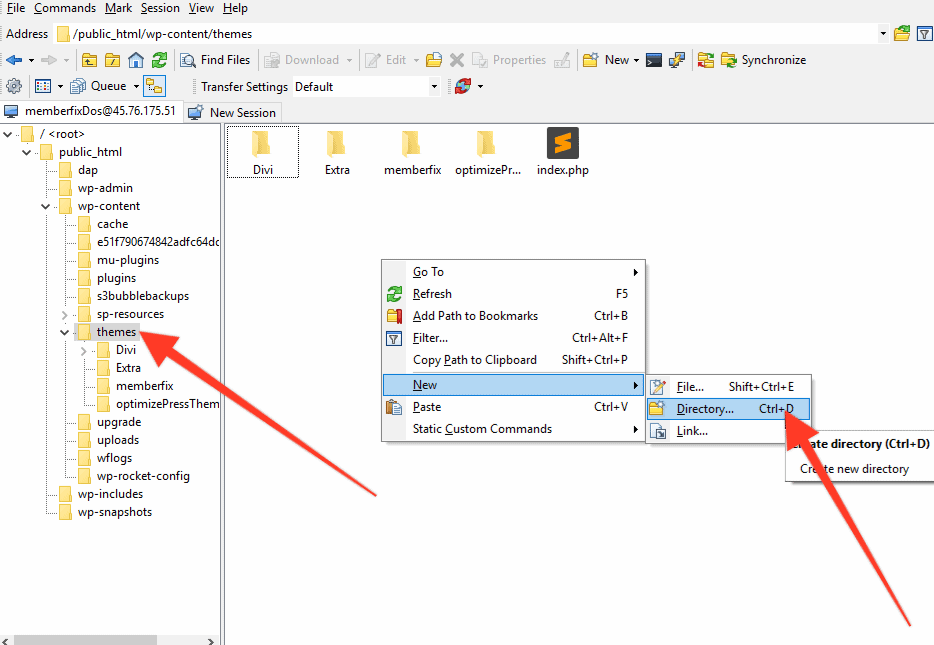
- Open the directory we just created.
- Right click and create new File and name it style.css (you must use this name or WordPress won't recognize it).
- Right click on style.css and select Edit.
- Paste this code inside Editor:
/*-------------------------------------------------------

Theme Name: Divi Child Theme

Theme URI: https://memberfix.rocks/divi-child-theme

Description: A child theme template for Divi

Author: MemberFix

Author URI: https://memberfix.rocks

Template: Divi

Version: 1.0.0

----------------- ADDITIONAL CSS BELOW ------------------*/ - Save and exit.
- Create new file and name it functions.php (you must use this name or WordPress won't recognize it).
- Right click on functions.php and select Edit.
- Paste this code inside:
<?php

function my_theme_enqueue_styles() {

wp_enqueue_style( 'parent-style', get_template_directory_uri() . '/style.css' );

}

add_action( 'wp_enqueue_scripts', 'my_theme_enqueue_styles' ); - Now you'll need an image, you can use any but WordPress recommends PNG file sized at 1200 by 900 pixels. And name it to screenshot.png. Or you can download this Image
- Upload it to your child theme's direcotry.
- Your Child Theme directory should contain these files now:
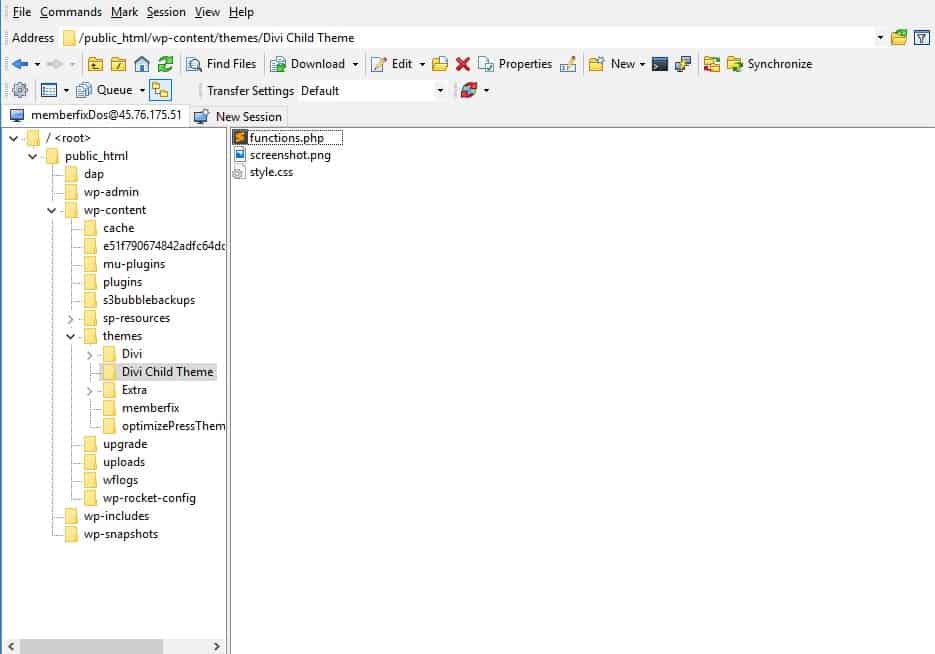
Results
- Go to your WordPress Dashboard.
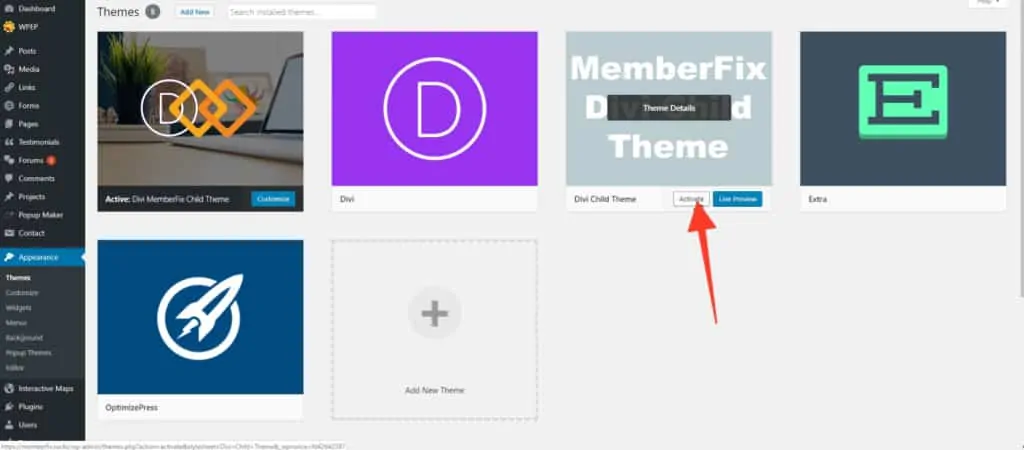
- Navigate to Appearance => Themes.
- You should see your new Child Theme now.
- Hover over your Child Theme and click Activate.
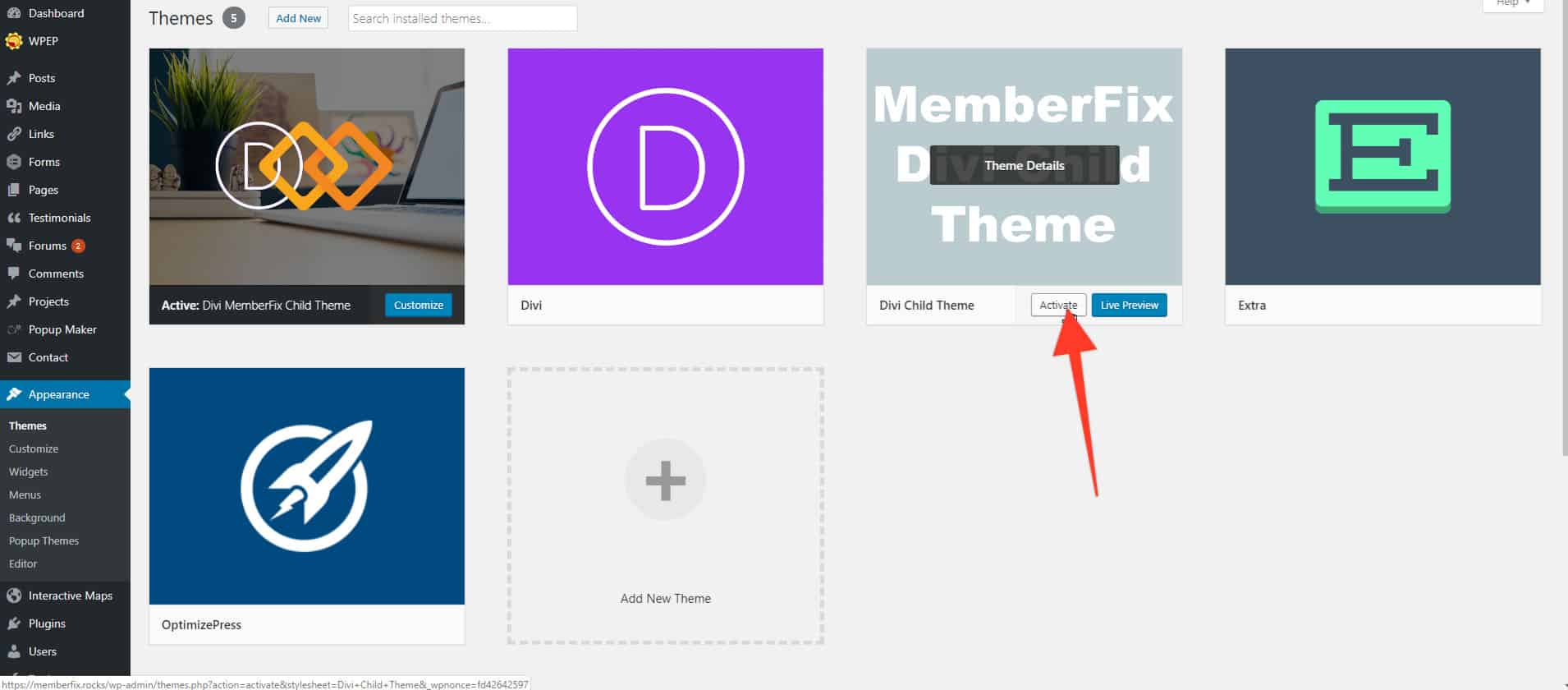
That's it, now you can safely edit your theme's files. Enjoy editing!