Overview
Do you want to share files hosted on your Amazon S3 account with your members but keep them protected from unauthorized users?
This tutorial will show you how to do that without using any plugins or 3rd party services. 🙂
The result is that only members logged into your membership site will be able to download the files.
What You'll Need For This Tutorial
1 – AWS account
2 – A page on your site to place the download links for your content.
Log in to your AWS account
1.1 If you don't have an AWS account, create it.
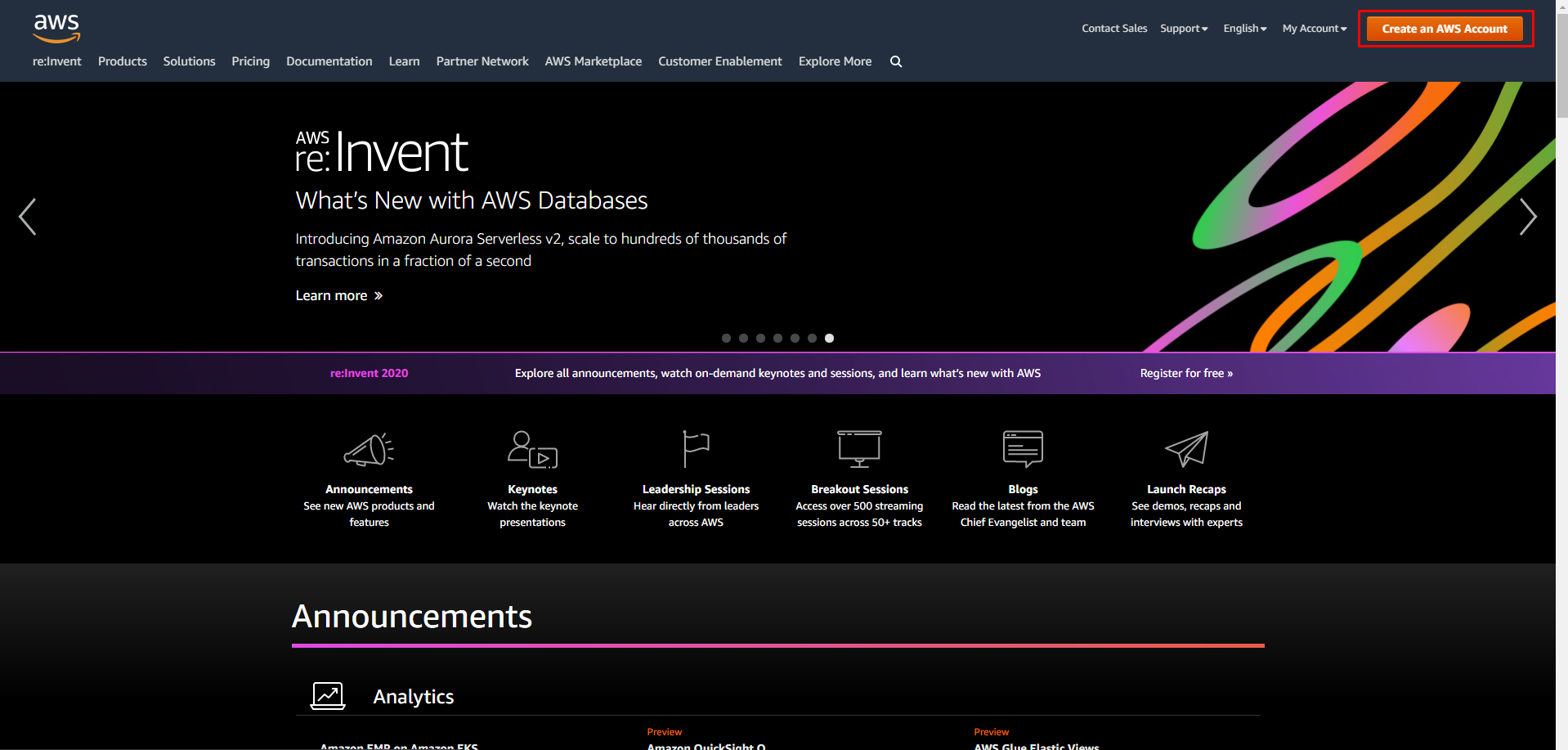
1.2 Login to your account.
Choose a folder you want to protect
2.1 Create a folder or use an existing folder.
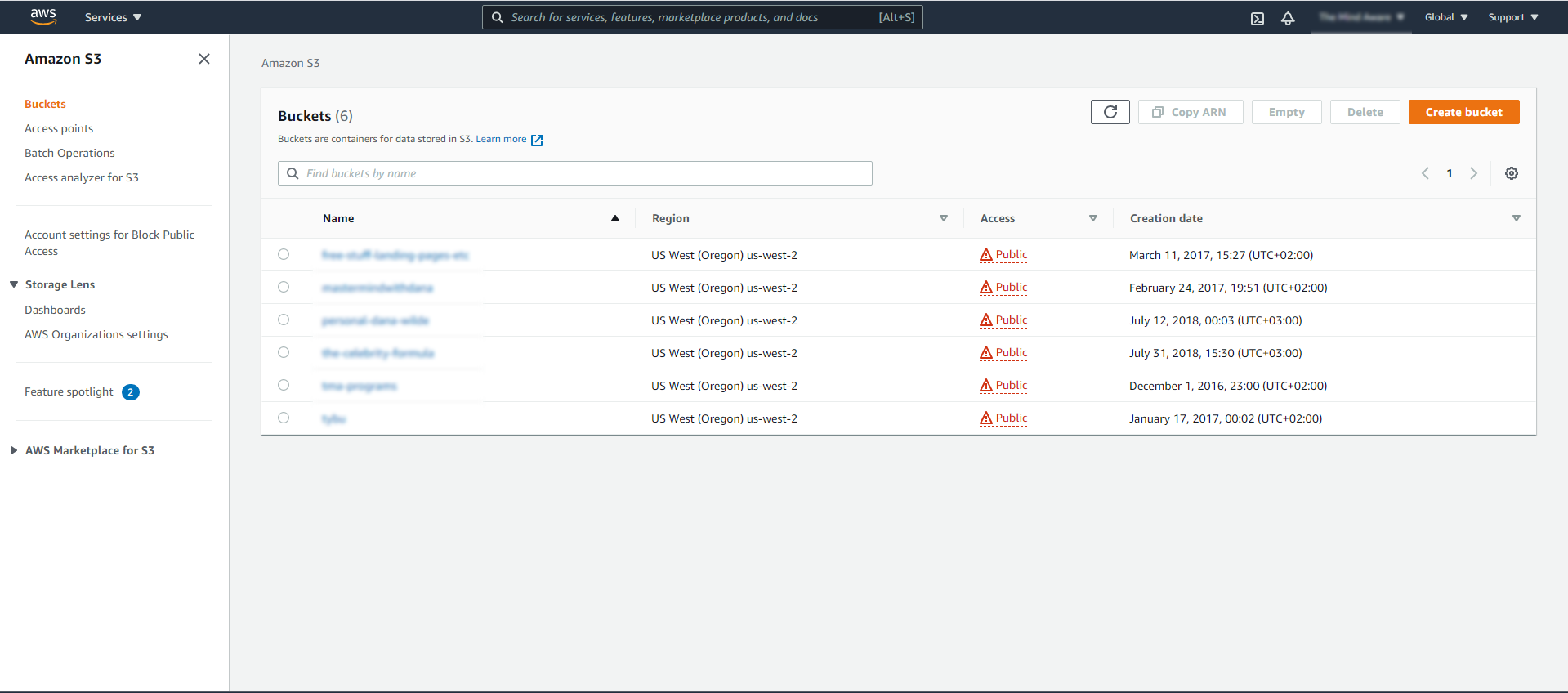
2.2 Click on the folder you want to protect.
Add Bucket policy script
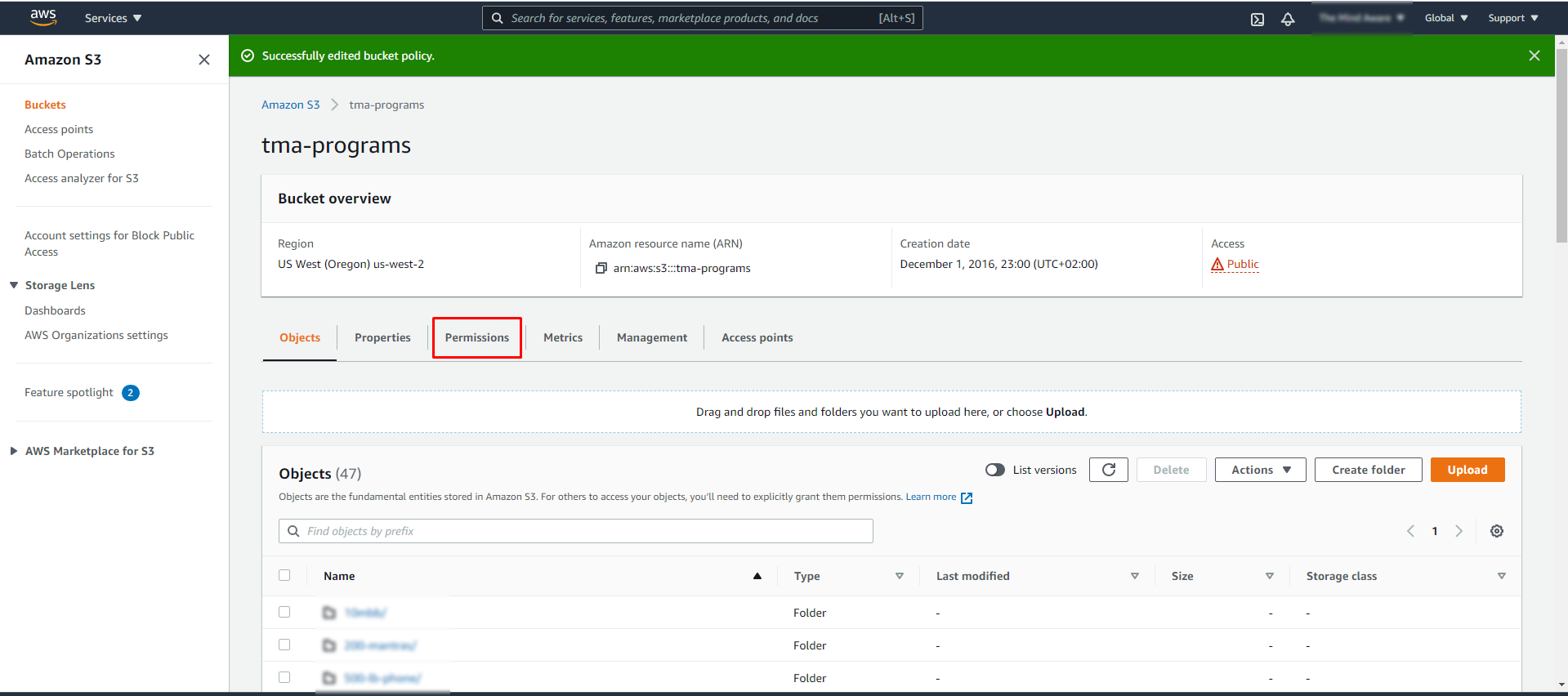
3.1 Choose the “Permissions” tab
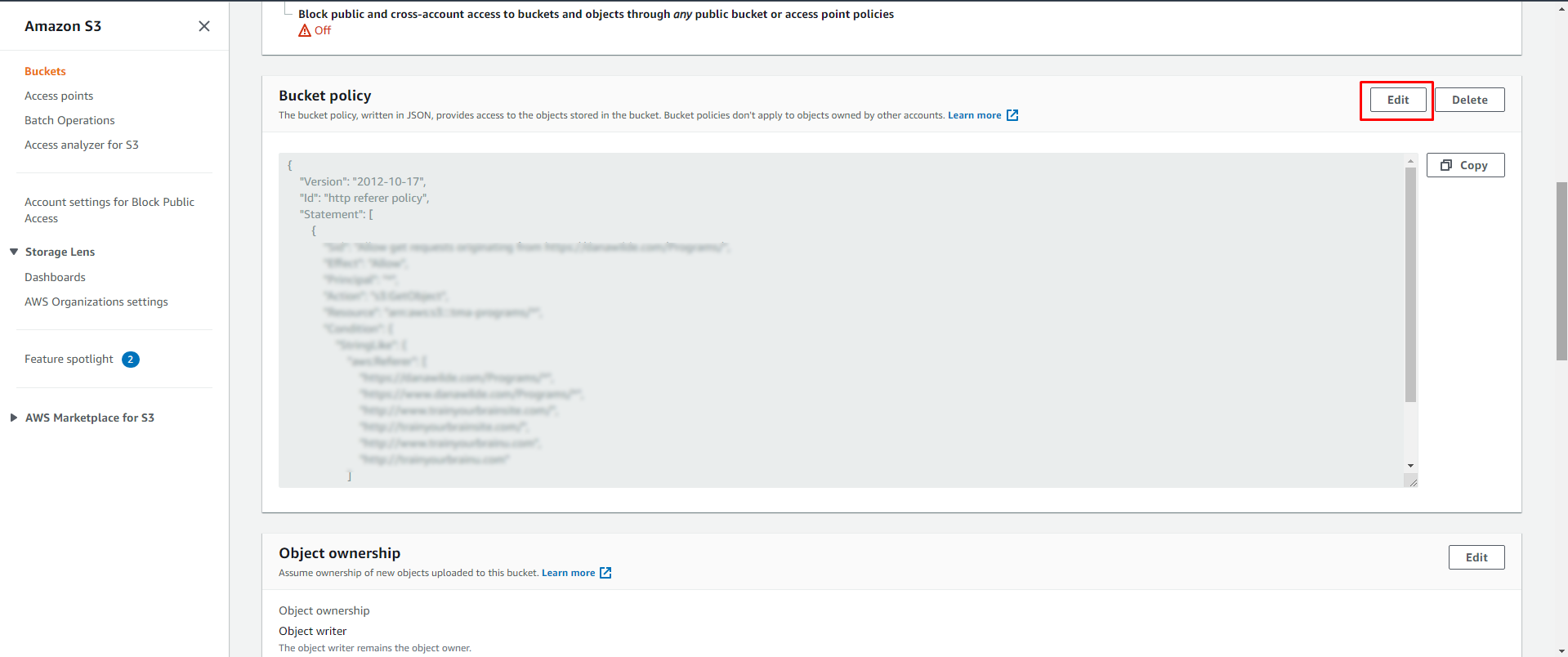
3.2 Scroll down to “Bucket Policy” block
3.3 Click on Edit button
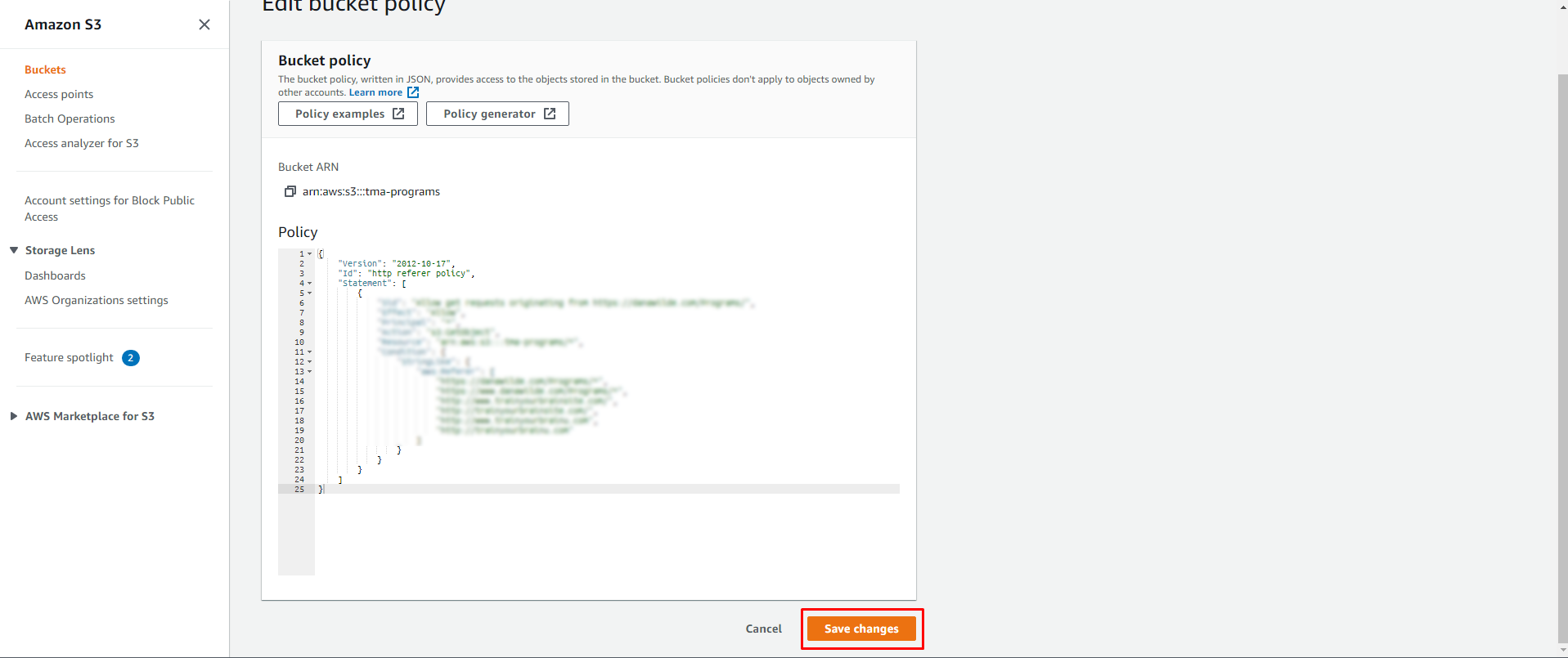
3.4 Add the following code there.
"Version": "2012-10-17",
 "Id": "http referer policy",
 "Statement": [
 {
 "Sid": "Allow get requests originating from %YOURWEBSITE%",
 "Effect": "Allow",
 "Principal": "*",
 "Action": "s3:GetObject",
 "Resource": "arn:aws:s3:::yourbucket/*",
 "Condition": {
 "StringLike": {
 "aws:Referer": [
 "https://yourwebsite.com/Programs/*",
 "https://www.yourwebsite.com/Programs/*",
 ] }
 }
 }
 ]}
Don't forget to change “Sid”, “Resource” and “aws:referer” data.
“Sid” – any name for the policy
“Resource” – the folder you want to protect
“aws: referer” – URLs of websites you want to allow access from.
3.5 Click on the “Save Changes” button.
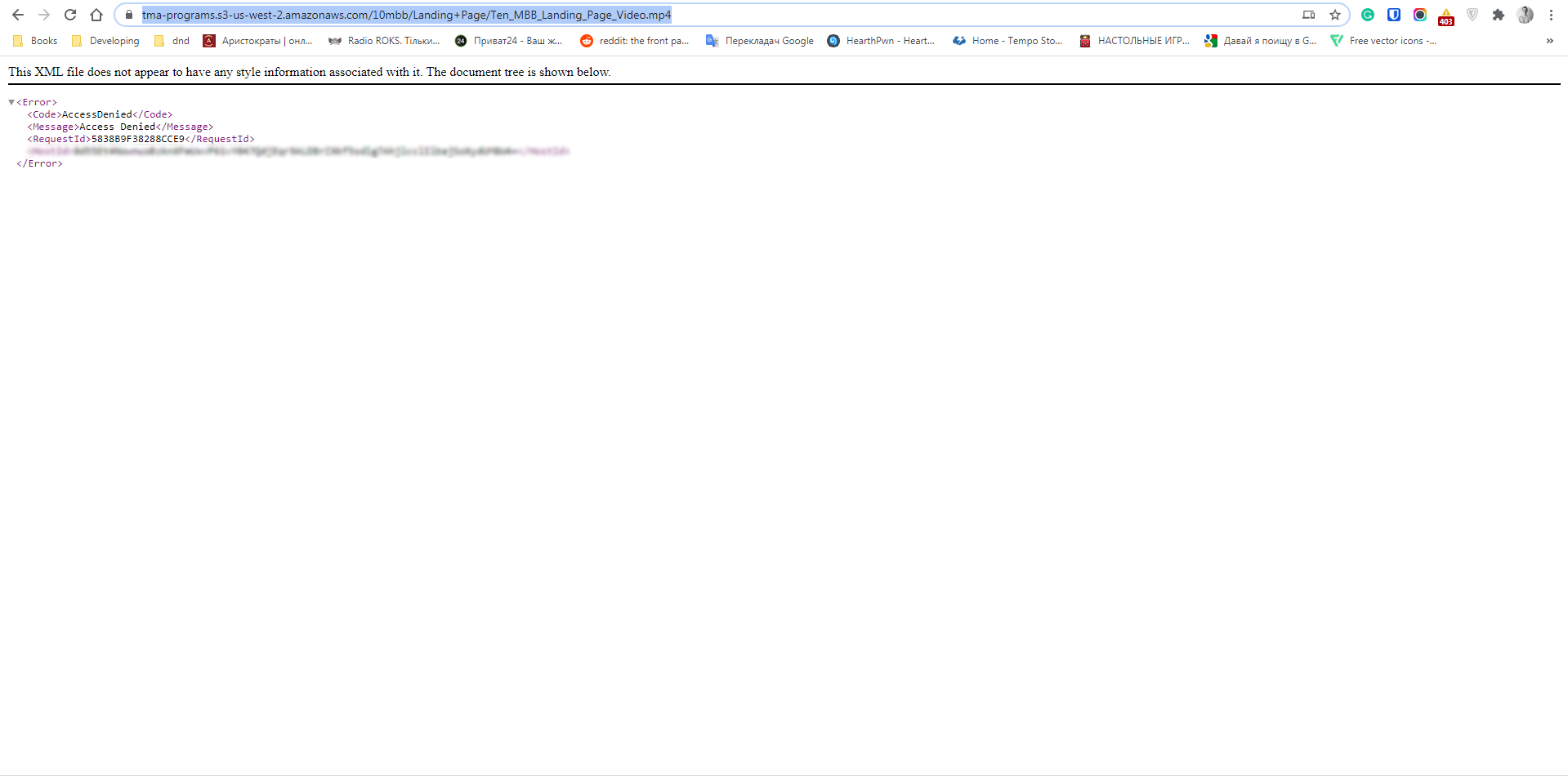
That's all. Now any user that will use links to your files will have no permission to see them.
But if the user clicks on a link when they're on a page on your site (as long as it's mentioned in the script), they will get access to the file.
Now let’s hear from you!
Are you ptrotecting your content?
Tell us how in the comments section below!